6 LinkedIn Banner Ideas That Turn Profile Views Into Connections
Most LinkedIn banners waste prime real estate. These 6 proven layouts show where to place text, dodge the mobile crop, and make recruiters click Connect.
LensCherry Team
AI Photo Experts • Updated March 2026
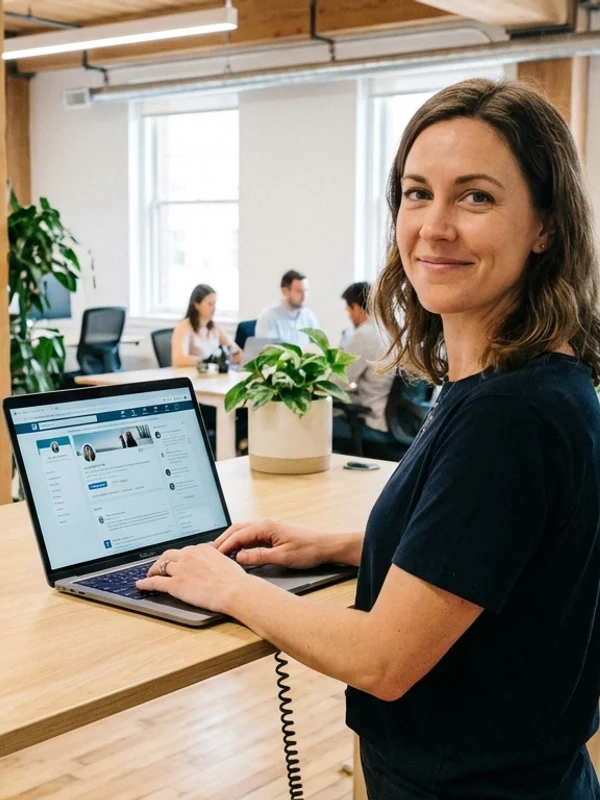
Short answer: The best LinkedIn banner in 2026 is simple, readable, and built around one job: make the right person want to click your profile. That usually means a 1584 x 396 banner with one clear positioning line, one light visual cue, and all important text kept in the center-right safe zone. If you want the safest starting point, copy one of the 6 custom banner examples below, then make sure it still works next to your profile photo.
If you want LinkedIn banner photo ideas that do more than fill empty space, focus on banners that support job search, consulting leads, recruiting trust, founder positioning, or creator credibility.
Last updated: March 19, 2026
What Actually Makes Someone Click a LinkedIn Profile?
A banner does not close the deal on its own. But it does help answer the question people ask in the first second:
"Do I know what this person does, and do they look worth clicking?"
A good LinkedIn banner helps by doing three things fast:
- it adds context your headshot cannot add on its own
- it reinforces your niche, offer, or credibility
- it makes the whole profile look intentional instead of half-finished
That is why the best banners are usually not fancy. They are clear.
If your profile photo is still weak, fix that before you obsess over the banner. These pages help as a set:
- LinkedIn profile photo tips
- LinkedIn photo background ideas
- LinkedIn photo size, crop, and resize guide
- AI Photos for LinkedIn
- LinkedIn Headshot
The Fast Banner Rules
If you do not want the long version, follow these:
- Use the correct size: 1584 x 396 pixels
- Keep important text in the center-right zone
- Use one message, not a paragraph
- Make the banner support the headshot, not fight it
- Check the mobile crop before leaving it live
That gets you most of the way there.
LinkedIn Banner Size and Safe Zone
Here are the numbers that matter:
- Recommended size: 1584 x 396 pixels
- Aspect ratio: 4:1
- Best file types: PNG or JPG
- Max file size: 8MB
- Safe zone for text: roughly the middle to right 60% of the banner
Why the right side? Because your profile photo overlaps the lower-left area on desktop, and the mobile crop gets tighter around the center. The safest banner layouts leave breathing room on the left and keep the message toward the center-right.
If you are still fixing the profile photo itself, pair this guide with the full LinkedIn photo size, crop, and resize guide.
Refreshing the banner but the profile photo still feels off?
Fix the headshot first, then build a banner that matches it
Generate a cleaner LinkedIn-ready profile photo, then design the banner around that photo's color, crop, and overall tone so the full profile feels coordinated.
One-time credit packs. Credits never expire. Best for people turning profile views into recruiter clicks or client trust.
6 LinkedIn Banner Examples Worth Copying
These are the six banner directions that cover most real LinkedIn use cases.
1. Consultant positioning banner
Use a clean background, one service line, and one short value statement.
Best for:
- consultants
- advisors
- freelancers
- B2B service businesses
Why it works: it tells people what you do without making them decode a busy layout.
2. Founder social-proof banner
This one works when you need to show what you build plus one proof cue.
Best for:
- founders
- startup operators
- indie builders
- product-led consultants
Why it works: visitors get the category, the product signal, and one credibility cue in one glance.
3. Recruiter clarity banner
Recruiters do best with banners that feel warm, readable, and easy to trust.
Best for:
- recruiters
- talent leads
- hiring managers
- staffing professionals
Why it works: it avoids the usual mess of logos, tiny text, and left-side overlap.
4. Creator minimal banner
Creators and marketers usually need more personality, but not a chaotic collage.
Best for:
- creators
- marketers
- social leads
- design-forward personal brands
Why it works: it brings style in without wrecking readability.
5. Executive proof banner
A sharper option for leadership profiles where one proof card matters more than extra decoration.
Best for:
- executives
- board advisors
- senior operators
- leadership consultants
Why it works: you can add a proof point without turning the banner into a pitch deck.
6. Local service banner
If location is part of the buying decision, your banner should make that obvious fast.
Best for:
- realtors
- mortgage brokers
- local consultants
- service businesses with a city focus
Why it works: nearby clients can tell who you help and where you work before they scroll.
The Best Banner Style for Each LinkedIn Goal
If you are job searching
Use a clean positioning banner. Keep it simple.
Good formula:
Role + niche + one value line
Example:
Product Designer | SaaS UX | Turning complex flows into clearer user journeys
And make sure the headshot is doing its job too. If not, start with AI Photos for LinkedIn.
If you are a founder
Use one product cue, one short message, and maybe one proof point.
Do not try to fit your whole company story into the banner.
If you are a recruiter
Use language that says who you hire or what hiring area you cover.
Examples:
- Hiring go-to-market talent across North America
- Technical recruiting for developer tools and AI startups
- Helping product and design teams hire faster
If you are a consultant or coach
Your banner should make your niche obvious.
Examples:
- RevOps for B2B SaaS teams
- CFO support for agencies and service firms
- Executive coaching for first-time founders
If you are in a creative role
You have more room for personality. But keep one rule: your face still needs to win the page.
That is why LinkedIn photo background ideas matter too. The profile photo and banner should feel like they belong together.
Why Most LinkedIn Banners Underperform
Most weak banners fail for one of these reasons:
- Too much text
- Important copy hidden behind the profile photo
- Colors that fight with the headshot
- Generic stock imagery with no clear message
- Tiny proof text that disappears on mobile
The fix is not more decoration. The fix is better hierarchy.
Use this order:
- face
- message
- proof
- decoration
If decoration is winning, the banner is probably losing.
How to Make the Banner and Headshot Feel Like One System
A strong LinkedIn profile usually feels coordinated in four ways:
1. Similar color temperature
If your headshot is cool gray or blue-gray, a cool banner usually looks more polished than a warm orange one. If your headshot is warmer, match it.
2. Clean contrast around the profile photo
Do not let the overlap area get muddy. The headshot should stand out clearly.
3. Banner adds information the headshot cannot
The photo says who you are. The banner should say what you do.
4. Same professionalism level
A board-ready headshot with a playful neon creator banner usually feels off. So does a casual founder photo sitting on a stiff corporate banner.
If you need better photo options before you design around them, compare a few on LinkedIn Headshot.
Banner Copy Formulas That Work
You do not need a genius headline. You need a readable one.
Here are the easiest formulas:
Role + niche
- Fractional CFO for agencies
- Recruiter for early-stage product teams
- LinkedIn strategist for B2B founders
Outcome + audience
- Helping B2B teams turn pipeline into revenue
- Helping healthcare operators hire faster
- Helping founders look investor-ready online
Product + proof
- Building AI tools for creator teams
- 50+ launches supported across SaaS and ecommerce
Short is better. If the line only works when someone pauses to read it carefully, it is too long.
Related LinkedIn Pages to Improve the Whole Profile
A banner refresh usually works better when you tighten the full LinkedIn visual stack at the same time:
- LinkedIn profile photo tips for the headshot itself
- LinkedIn photo background ideas for cleaner backdrops
- LinkedIn photo size, crop, and resize guide for the actual upload specs
- AI Photos for LinkedIn if the current photo still feels weak
- LinkedIn Headshot if you want cleaner, profile-ready options fast
These pages work together better than treating the banner as a one-off design task.
Frequently Asked Questions
What size should my LinkedIn banner be?
Use 1584 x 396 pixels with a 4:1 aspect ratio. Keep important text in the center-right area so it survives desktop and mobile crop changes.
What should I put on a LinkedIn banner?
Usually your role, niche, value proposition, or one proof cue. The banner should explain what you do quickly, not repeat your whole resume.
Does a LinkedIn banner really matter?
Yes, especially when someone is deciding whether to click your profile from search, comments, or connection requests. It will not rescue a weak profile, but it can make a strong one feel much more intentional.
Should my LinkedIn banner match my headshot?
It should feel related, not identical. Match the tone, color temperature, and professionalism level. If the headshot still feels weak, fix that first.
Can I use AI to make a LinkedIn banner?
Yes, but the best use of AI is usually generating the headshot and supporting visuals first, then building the final banner layout in Canva or Figma so the crop stays under your control.
What is the safest LinkedIn banner style?
A clean positioning banner with one short line of copy and calm colors is the safest option for most professionals.
Final Take
The best LinkedIn banner is not the flashiest one. It is the one that makes the right person think, "I get what this person does. I should click."
Start with one clear message, use a banner style that matches your role, and keep the layout simple enough to survive the crop.
And if the banner refresh exposed a bigger problem with the headshot, solve that next with AI Photos for LinkedIn or LinkedIn Headshot.
Banner examples
Six LinkedIn banner layouts built around the real crop constraints
These six custom banner examples show where text, proof, and visual weight can sit without getting wrecked by the profile-photo overlap or the tighter mobile banner crop.
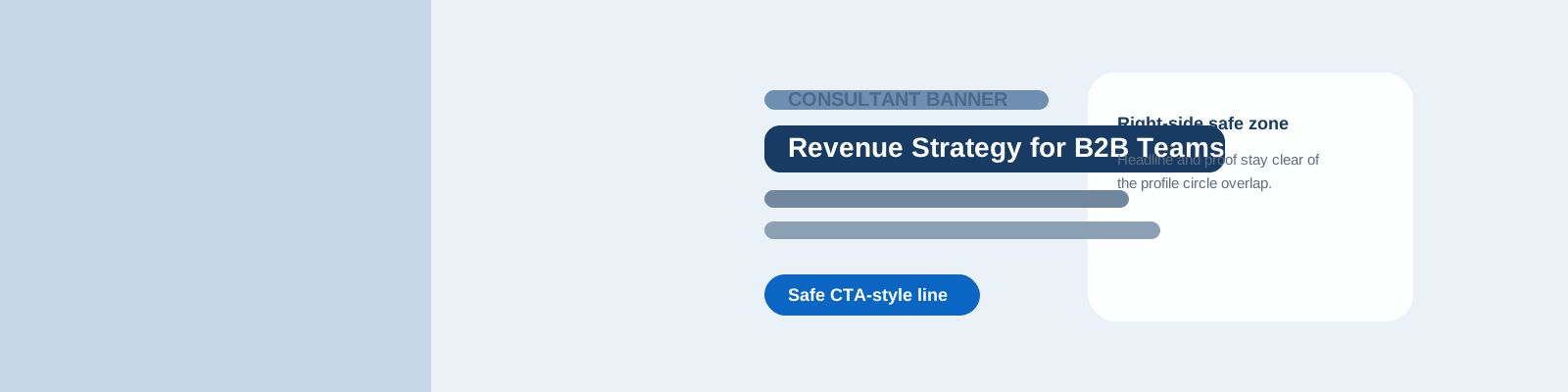
Consultant positioning banner
Simple value proposition, restrained palette, and safe right-side text placement.
Why it works
The message survives desktop and mobile crop changes because the headline stays out of the profile-photo overlap zone.
Best for
Consultants, advisors, and service businesses
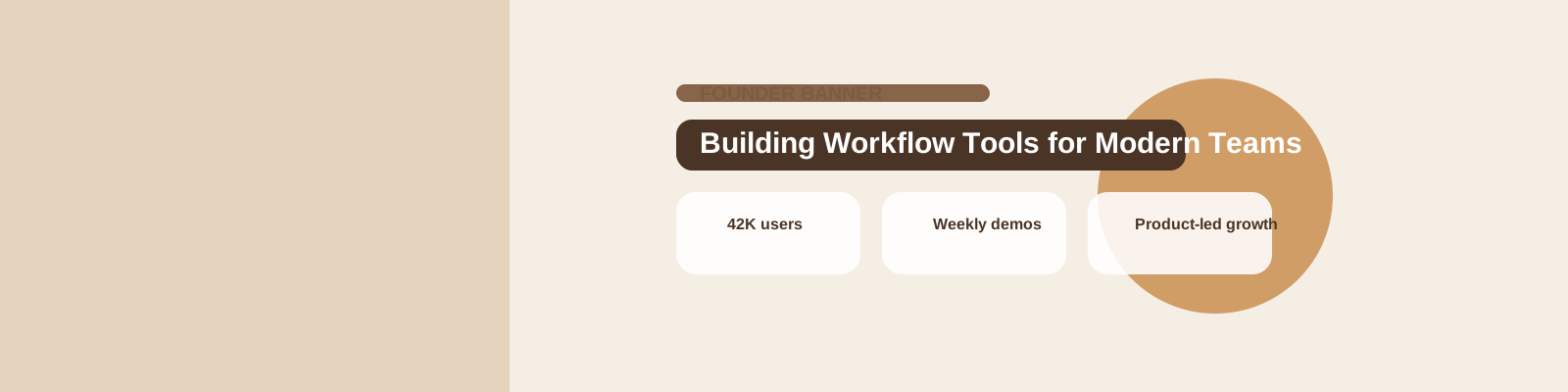
Founder social proof banner
Combines one product cue, one credibility stat, and a clear brand line without clutter.
Why it works
It tells visitors what you build fast while still leaving enough negative space for the profile photo and mobile crop.
Best for
Founders, startup operators, and indie builders
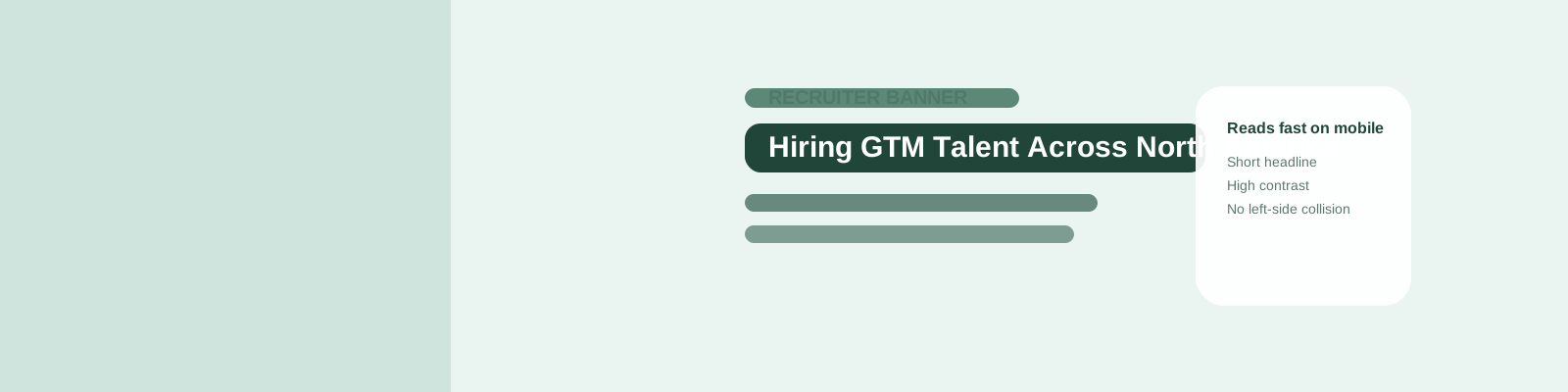
Recruiter clarity banner
Fast-read hiring message with calm colors and a central safe zone that still holds on mobile.
Why it works
The copy is short, the contrast is strong, and the layout avoids the left-side collision with the profile circle.
Best for
Recruiters, talent leads, and staffing professionals
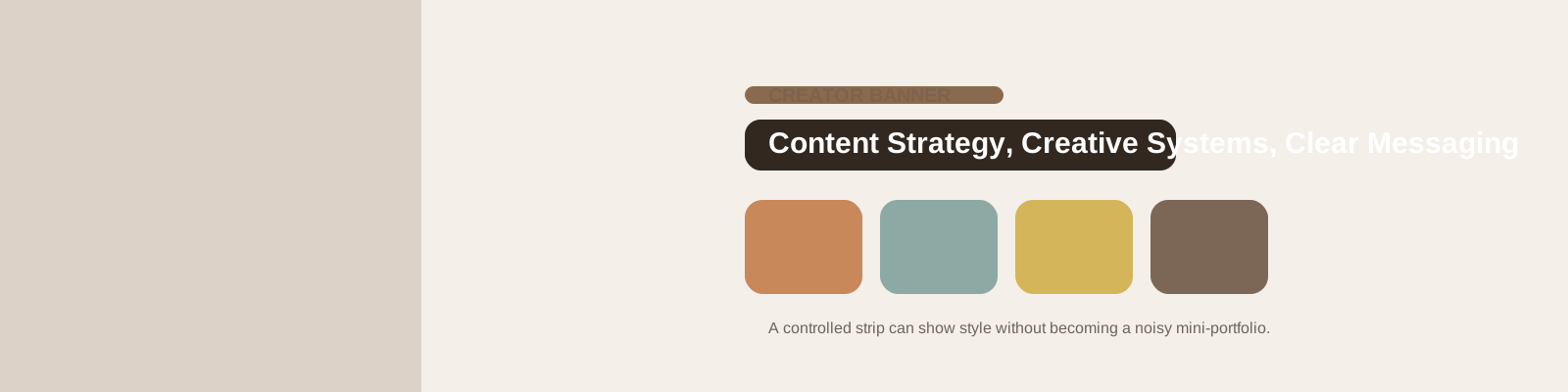
Creator minimal banner
A modern strip layout that shows style without turning the banner into a crowded portfolio collage.
Why it works
It creates brand personality with a controlled set of shapes and one line of positioning instead of a wall of thumbnails.
Best for
Creators, marketers, and design-forward professionals
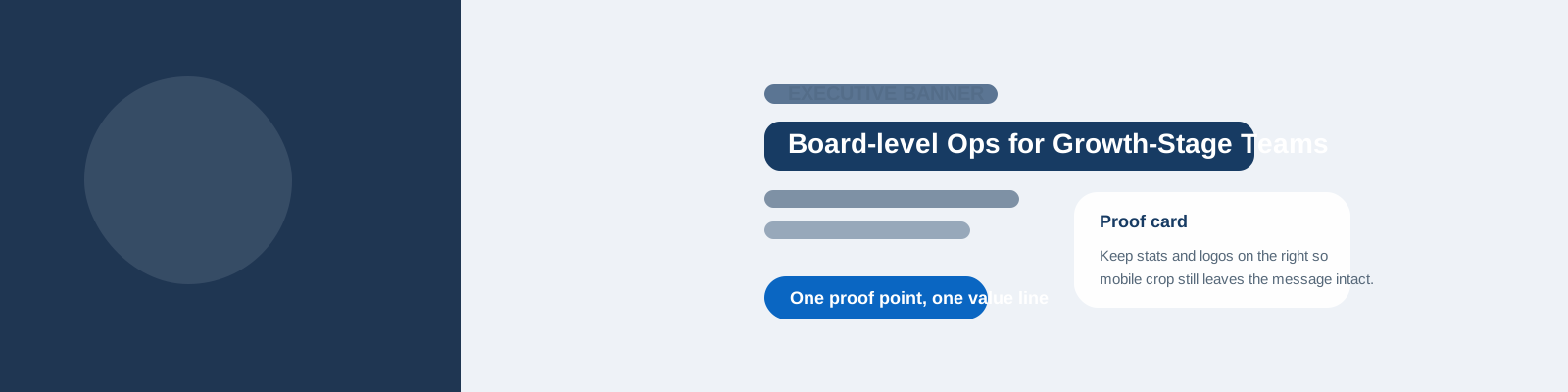
Executive proof banner
One credibility card, one value line, and enough open space to keep the profile photo from colliding with the message.
Why it works
It gives leadership profiles a sharper credibility cue without turning the banner into a cramped investor slide.
Best for
Executives, board advisors, and senior operators
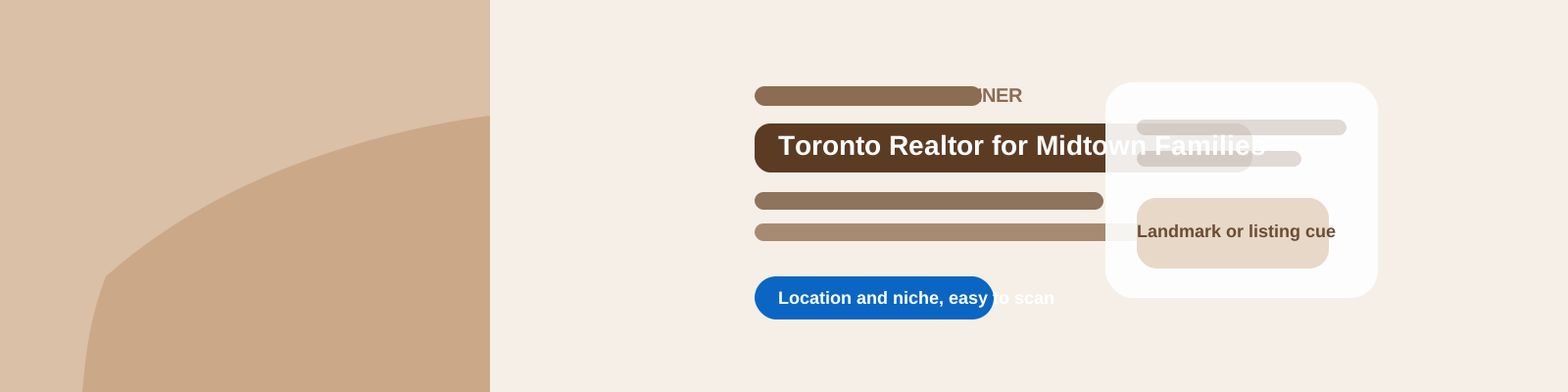
Local service banner
Pairs a location cue with a niche line so nearby clients can tell what you do before they scroll.
Why it works
It adds place and specialty without stuffing the banner with tiny neighborhood details that disappear on mobile.
Best for
Realtors, mortgage brokers, local consultants, and service businesses
Ready to turn banner traffic into a full LinkedIn refresh?
Start with a stronger LinkedIn profile photo, then build the banner around it
Use LensCherry to generate a cleaner headshot first, then pair it with a banner that matches the same color temperature, positioning, and professional tone.
One-time credit packs. Credits never expire. Best when the banner update is part of a bigger profile refresh.