LinkedIn Photo Sizes 2026: Exact Pixels for Profile, Banner & Posts
Stop guessing LinkedIn image dimensions. Every size for profile photos, banners, and posts in one cheat sheet, plus free resize tools to fix yours in 2 minutes.
LensCherry Team
AI Photo Experts • Updated March 2026
Quick answer: Use a square LinkedIn profile photo that is at least 400 x 400 pixels, keep your face centered with breathing room around your hair and shoulders, and remember that LinkedIn converts that square into a circle. Use 1584 x 396 pixels for your banner. If you are stuck resizing a weak source image, start with AI Photos for LinkedIn and generate a few LinkedIn-ready options first.
- Profile photo: 400 x 400 px minimum, 800 x 800 px recommended
- Banner: 1584 x 396 px
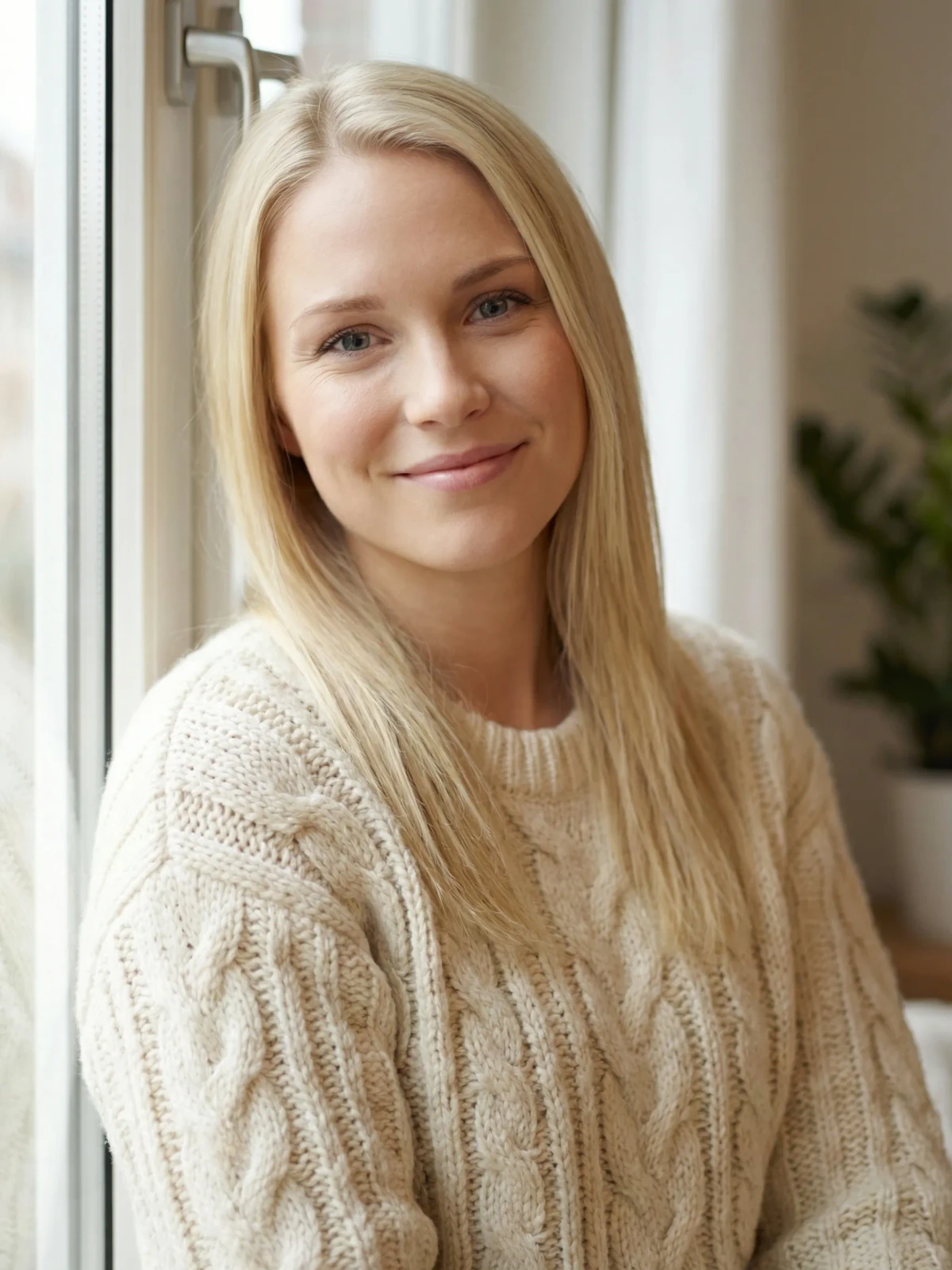
- Safest crop: face and upper shoulders filling about 60 to 70% of the square
- Best shortcut: generate a cleaner square source image before you start resizing
Why Dimensions Matter on LinkedIn
You can have a great headshot and still end up with a weak LinkedIn photo if the crop is wrong.
That is the real problem. LinkedIn shows your profile image as a small circle in feeds, search results, messages, and connection requests. A photo that looks fine full-size can become unreadable once it gets shrunk and clipped. The fix is simple: use the right dimensions, leave room for the circle crop, and check the thumbnail before you call it done.
This guide covers the exact sizes you need in 2026, plus the quickest path when the bigger issue is that you need a better photo in the first place.
LinkedIn Profile Photo Dimensions
- Minimum size: 400 x 400 pixels
- Recommended size: 800 x 800 pixels
- Maximum file size: 8MB
- Supported formats: JPG, PNG
- Display shape: Circle
- Face coverage: 60 to 70% of the frame
The Circular Crop Problem
LinkedIn displays your profile photo as a circle, but you upload a square image. That means the corners get cut off. Anything in the corners of your square photo disappears.
How to prepare for the circular crop:
- Center your face in the square frame
- Leave equal padding on all four sides
- Keep your head, hair, and shoulders away from the edges
- Test by imagining a circle inscribed in your square. Everything outside that circle is gone
Common mistake: Uploading a rectangular photo and letting LinkedIn auto-crop it. LinkedIn will center-crop a rectangle into a square, then circle-crop that. You lose control of framing twice. Always upload a square image. For a stronger starting point before you resize anything, see our LinkedIn profile photo tips.
Desktop vs Mobile Display
Your profile photo appears at different sizes depending on where it's viewed:
| Context | Display Size |
|---|---|
| Your profile page (desktop) | 200 x 200 px |
| Your profile page (mobile) | 140 x 140 px |
| Feed posts and comments | 48 x 48 px |
| Search results | 56 x 56 px |
| Messages and InMail | 40 x 40 px |
| Connection requests | 72 x 72 px |
At 48 pixels in the feed, only high-contrast photos with clear facial features are recognizable. If your headshot looks good at thumbnail size, it will look great everywhere else.
Pro tip: Shrink your headshot to 48 x 48 pixels on your screen. Can you recognize the person? If not, increase the contrast, crop tighter on the face, or choose a simpler background.
LinkedIn Banner (Cover Photo) Dimensions
- Recommended size: 1584 x 396 pixels
- Aspect ratio: 4:1
- Maximum file size: 8MB
- Supported formats: JPG, PNG
For a full guide on banner design, check our LinkedIn banner photo ideas post.
The Banner Crop Problem
Your banner gets cropped differently on every device:
| Device | Visible Area | Profile Photo Position |
|---|---|---|
| Desktop | Full 1584 x 396 | Bottom-left overlap |
| Mobile | Center ~1350 x 220 | Bottom-center overlap |
| Tablet | Varies by model | Bottom-left overlap |
The safe zone for critical content is the center 1200 x 200 pixels. Anything outside that might be hidden on some devices, and your profile photo always covers part of the bottom-left or bottom-center.
Design tip: Place text and important imagery in the right half of your banner, roughly 40% from center to right edge. This avoids the profile photo overlap on all devices.
LinkedIn Post Image Dimensions
When you share images in LinkedIn posts, different formats have different optimal sizes:
Single Image Posts
- Recommended: 1200 x 627 pixels (landscape)
- Alternative: 1080 x 1080 pixels (square)
- Portrait: 1080 x 1350 pixels
- Aspect ratios supported: 1:2.4 to 2.4:1
LinkedIn's feed favors landscape and square images. Portrait images work but take up more vertical space, which can be an advantage for stopping the scroll.
Multi-Image Posts (Carousels)
- Each slide: 1080 x 1080 pixels (square) or 1080 x 1350 (portrait)
- PDF uploads: Same dimensions, exported as PDF slides
- Maximum images: 20 per post
- Maximum PDF pages: 300
Article Header Images
- Recommended: 1200 x 644 pixels
- Minimum: 744 x 400 pixels
Company Page Logo
- Recommended: 300 x 300 pixels
- Display size: 60 x 60 pixels in most contexts
Company Page Cover
- Recommended: 1128 x 191 pixels
- Minimum: 1128 x 191 pixels
Want to skip the resize loop?
Start with LinkedIn-ready photos instead of fixing a weak crop after upload
LensCherry gives you clean square profile-photo options from your reference photos, so you can compare sharper LinkedIn crops instead of wrestling with a badly framed original.
One-time credit packs. Credits never expire. Best when the current headshot keeps falling apart in LinkedIn's crop.
How to Resize Photos for LinkedIn
Method 1: Built-in Phone Tools
iPhone:
- Open the photo in Photos
- Tap Edit, then Crop
- Select the square aspect ratio for profile photos
- Center your face and save
Android:
- Open in Google Photos
- Tap Edit, then Crop
- Select 1:1 for square crop
- Adjust positioning and save
Method 2: Free Online Tools
- Canva: Set custom dimensions (800 x 800 for profile, 1584 x 396 for banner)
- Photopea: Free Photoshop alternative. Image > Canvas Size to set exact pixels
- Squoosh.app: Google's free tool for resizing and compressing images
- LinkedIn's own cropper: Works but gives you limited control
Method 3: Desktop Software
- Preview (Mac): Tools > Adjust Size, then use the crop tool
- Photos (Windows): Edit > Crop > Custom ratio
- Photoshop/GIMP: Most control, use Image > Canvas Size for exact dimensions
Method 4: Skip the Worst Part of Resizing
If the real issue is that your current photo was never framed well for LinkedIn, resizing only gets you so far. AI Photos for LinkedIn is the cleaner fix. You create your model from reference photos, generate several profile-photo options, and compare square crops that already work for LinkedIn's circular display.
That saves real time. Instead of fighting a weak source image, you start from sharper, profile-ready options with cleaner framing and background control.
Compression: Why Your Photo Looks Worse After Uploading
Even if you upload a perfect 800 x 800 pixel photo, LinkedIn compresses it. The platform reduces file sizes to speed up page loads, and this compression can soften details, add artifacts around text, and reduce color accuracy.
How to minimize compression damage:
- Upload PNG instead of JPG. PNG files hold up slightly better through LinkedIn's compression pipeline
- Upload at 2x the display size. An 800 x 800 upload displays at 200 x 200, giving LinkedIn more data to work with during compression
- Avoid fine text in images. Thin fonts get destroyed by compression. Use bold, clean typography
- Use solid colors where possible. Gradients and subtle textures show compression artifacts more than solid blocks of color
- Check after uploading. Open your profile on both desktop and mobile to verify the compressed result looks acceptable
Mobile vs Desktop: The Inconsistency Problem
LinkedIn's mobile and desktop apps render images differently. Here's what to watch for:
Profile photo placement on banner: On desktop, your circular profile photo overlaps the bottom-left of your banner. On mobile, it shifts to bottom-center. If your banner has content in the bottom-center, mobile users won't see it.
Post image cropping: LinkedIn's feed crops landscape images to roughly 1.91:1 on desktop and tighter on mobile. Portrait images may be truncated with a "see more" expansion.
Resolution differences: Mobile screens are physically smaller but often have higher pixel density. A photo that looks sharp on a desktop monitor might look slightly different on a retina phone screen.
The fix: Always check your profile and posts on both desktop and mobile after making changes. The 30 seconds it takes to pull out your phone and verify is worth it.
Image Quality Checklist for LinkedIn
Before uploading any image to LinkedIn, run through this:
- Correct dimensions for the image type (profile, banner, post)
- Square format for profile photos (800 x 800 px minimum)
- Face centered for circular crop
- High contrast and clear features (readable at 48px thumbnail)
- No important content in banner corners (mobile crop zone)
- File under 8MB
- PNG format preferred for sharpness
- Tested on both desktop and mobile after upload
Why AI-Generated Photos Skip These Problems
One practical advantage of starting with AI Photos for LinkedIn is that the output is already built around the platform's crop. When you generate a LinkedIn photo with LensCherry, the output is:
- Already square (perfect for LinkedIn's circle crop)
- High resolution (2K or 4K depending on your plan)
- Properly framed (face centered, correct head-to-frame ratio)
- Clean background (no compression artifacts from busy environments)
- Optimized for digital display (not print, where different rules apply)
You still need to choose the best option, but you skip most of the resize, crop, and optimize workflow. Generate, compare, upload.
For headshot-specific decisions beyond sizing, check our LinkedIn profile photo tips. If your banner needs work too, our LinkedIn banner ideas post covers layouts that survive LinkedIn's crop. Choosing the right background for your headshot also matters more than most people expect.
Frequently Asked Questions
What size should a LinkedIn profile photo be?
Use a square image that is at least 400 x 400 pixels. In practice, 800 x 800 pixels or larger gives you more room to test the crop without losing clarity.
Why does my LinkedIn profile photo look different after upload?
Because LinkedIn crops square photos into a circle and also compresses uploads. A photo can look fine in your gallery and still lose sharpness or clip your shoulders once LinkedIn processes it.
What is the safest crop for LinkedIn?
Keep your face centered and let your head and upper shoulders fill about 60 to 70% of the square frame. Leave some breathing room around your hair and shoulders so the circle crop does not cut into them.
What size should a LinkedIn banner be?
The recommended banner size is 1584 x 396 pixels. Keep important text and imagery near the center-right area so the profile photo overlap and mobile crop do not hide it.
Do I need to resize my photo manually if I use LensCherry?
Usually no. If you start with AI Photos for LinkedIn, you are already working from square, high-resolution options that are easier to upload directly and test inside LinkedIn.
The 5-Minute LinkedIn Image Audit
Here's a quick exercise. Open LinkedIn right now and check:
- Profile photo: Is it square? Is your face clearly visible in the circle crop? Does it look sharp in the feed at thumbnail size?
- Banner: Does it look good on mobile? Is anything hidden behind your profile photo? Is the text readable?
- Recent post images: Are they the right aspect ratio? Do they look crisp or compressed?
If anything fails these checks, fix it today. The tools are free, the process takes minutes, and the difference in how your profile is perceived is significant.
Existing users can sign in to LensCherry to create headshots, dating photos, and creative portraits. Credit packs start at $4.99 and never expire.
Done troubleshooting dimensions?
Create a fresh LinkedIn photo that already fits the platform better
If sizing fixes are not enough, LensCherry gives you profile-ready LinkedIn options from reference photos so you can upload a stronger square image and move on.
One-time credit packs. Credits never expire. Best when the crop problem is really a photo problem.