11 LinkedIn Profile Photo Tips That Actually Get You Noticed (2026)
Your LinkedIn photo is your first impression with recruiters and clients. These 11 tips cover lighting, backgrounds, expressions, and common mistakes that cost you connections.
LensCherry Team
AI Photo Experts • Updated March 2026

Quick answer: The best LinkedIn profile photo is current, square, tightly framed around your face and upper shoulders, lit with soft light, and set against a simple background that still looks clean once LinkedIn turns it into a small circle. If you do not already have that photo, start with AI Photos for LinkedIn to generate a few LinkedIn-ready options from your reference photos, then use the checks below to choose the strongest one.
- Best crop: face and upper shoulders filling about 60 to 70% of the frame
- Best light: soft window light or open shade
- Best background: neutral studio, soft office blur, or simple outdoor bokeh
- Best next step if you have no good options: generate a few LinkedIn-ready candidates in AI Photos for LinkedIn
Your LinkedIn profile photo matters more than most people think. Profiles with photos get more profile views and messages than profiles without one, but only if the photo actually looks credible at thumbnail size.
Most LinkedIn advice stops at "look professional." That is too vague to help. Here are 11 specific rules that make it easier to pick or create a photo that feels current, trustworthy, and easy to read in 2026.
1. Fill 60% of the Frame With Your Face
LinkedIn displays your photo as a small circle. If you're standing far from the camera, your face becomes a tiny dot surrounded by background. Crop tight. Your face and upper shoulders should take up roughly 60% of the circle.
Not a passport photo level close-up. But close enough that someone scrolling the feed can clearly see your expression and features at thumbnail size. If you want the exact square specs, safe crop, and banner dimensions too, use our LinkedIn photo size, crop, and resize guide.
2. Use Natural Light (But Not Direct Sunlight)
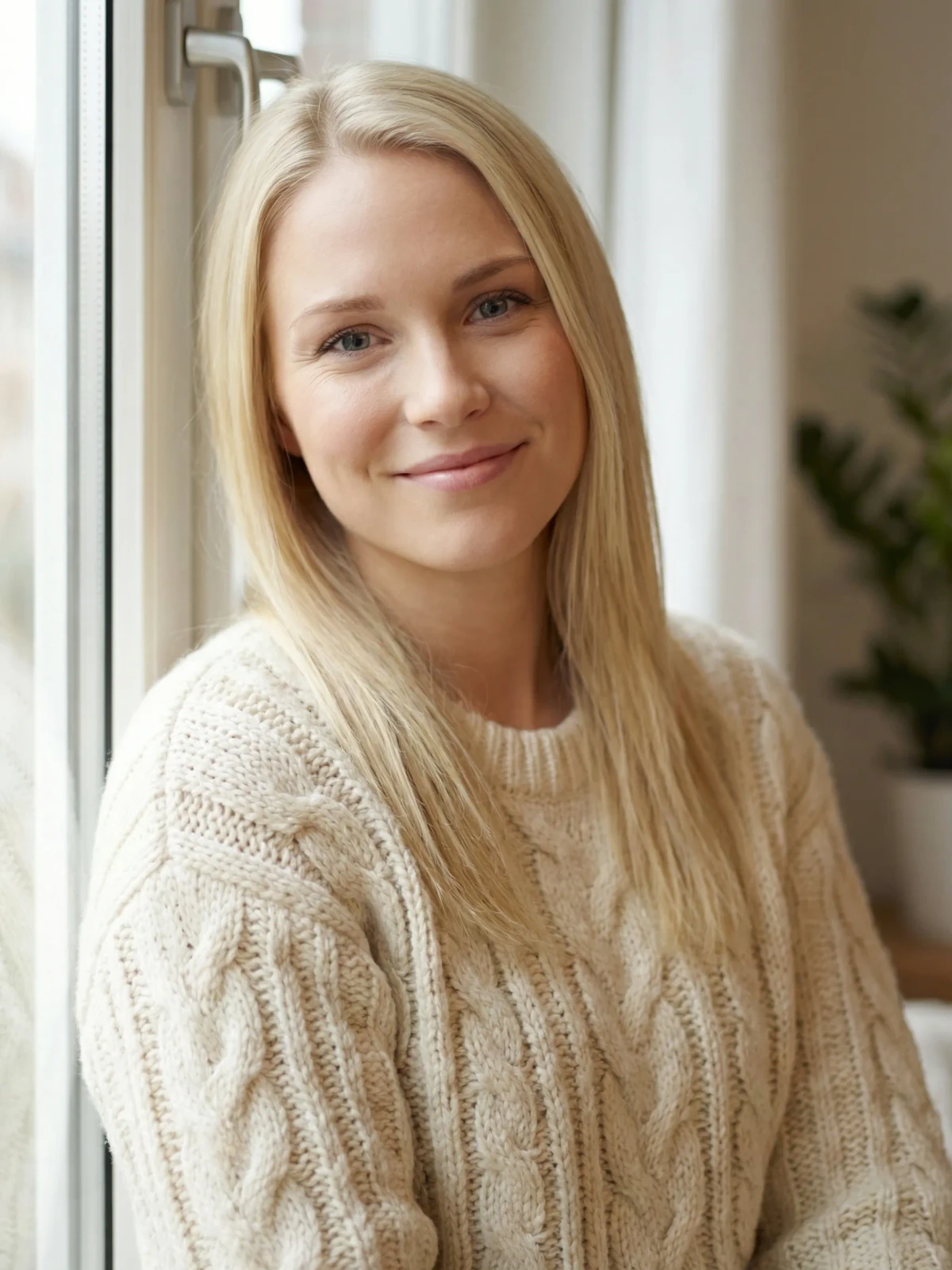
The best LinkedIn photos use soft, natural light. Stand near a large window with the light facing you. Not behind you (that creates a silhouette) and not directly overhead (that creates harsh shadows under your eyes).
Overcast days are actually perfect for outdoor shots. The clouds act as a giant diffuser. Direct sunlight creates squinting and unflattering shadows.
If natural light isn't an option, a ring light or softbox works. Avoid overhead office fluorescents. They make everyone look tired.
3. Pick a Clean, Non-Distracting Background
Your background should support your photo, not compete with it. The best options:
- Solid neutral colors (light gray, soft white, warm cream)
- Softly blurred office or bookshelf (shows professional context without clutter)
- Outdoor with bokeh (greenery or architecture, out of focus)
Avoid busy patterns, messy rooms, or backgrounds that draw attention away from your face. And definitely avoid the bathroom mirror selfie. It happens more than you'd think.
For more background ideas, check our LinkedIn photo background guide. If you want to test a gray studio look, a soft office blur, or a cleaner outdoor option without a new shoot, AI Photos for LinkedIn is built for exactly that comparison.
4. Dress One Level Above Your Daily Work
If you wear t-shirts to work, put on a collared shirt. If you wear business casual, add a blazer. You don't need a full suit unless that's your industry norm.
The key is looking intentional. Wrinkled clothes, visible logos, and distracting patterns all undermine the professional image. Solid colors photograph better than patterns. Navy, charcoal, white, and black are safe bets.
Need better options before you pick the final photo?
Create LinkedIn headshots built for the circle crop, then choose the strongest one
LensCherry helps you create a model from reference photos and generate clean LinkedIn options with stronger framing, better light, and simpler backgrounds.
One-time credit packs. Credits never expire. Useful when your current profile photo is close, but not quite right.
5. Look Directly at the Camera
Eye contact matters even in a photo. Looking directly at the lens creates a sense of connection with whoever views your profile. Looking off to the side can seem disengaged or staged.
There's an exception: if you're going for a more candid, creative-industry look, a slight angle can work. But for most professionals, direct eye contact is the move.
6. Smile With Your Eyes, Not Just Your Mouth
A forced smile is worse than no smile. The difference between a genuine and fake smile shows up in the eyes. A real smile causes slight crinkles at the corners of your eyes (crow's feet, but in a good way).
Practice in front of a mirror. Think of something that genuinely makes you happy. The micro-expressions around your eyes will follow naturally.
For corporate roles, a subtle, confident smile works well. For creative or client-facing roles, a warmer, more open smile helps convey approachability.
7. Keep It Current (Within 2 Years)
Using a photo from 2019 creates an awkward moment when you show up to a meeting looking noticeably different. If your hair, weight, or general appearance has changed significantly, update your photo.
A good rule: if someone who only knows you from LinkedIn would recognize you walking into a coffee shop, your photo is current enough.
8. Skip the Filters and Heavy Editing
Instagram filters don't belong on LinkedIn. Neither does aggressive skin smoothing, dramatic color grading, or background replacements that look obviously fake.
Light editing is fine. Adjusting brightness, contrast, and color balance. But the goal is to look like yourself on a good day, not a heavily edited version of yourself.
9. Shoot at Eye Level
Photos taken from below make you look imposing (not in a good way). Photos from above can look like a dating app selfie. Eye level is the sweet spot.
If you're using a tripod or phone mount, set it at the same height as your eyes. If someone else is taking the photo, ask them to hold the camera at your eye level.
10. Use a Recent, High-Resolution Image
LinkedIn recommends at least 400x400 pixels, but higher is always better. A low-res, pixelated photo immediately looks unprofessional, especially on desktop where the profile photo displays larger.
Photos from modern phones are more than adequate. Just avoid screenshots, cropped group photos, or images that have been compressed multiple times. Our size and crop guide covers the exact dimensions if you need to prep a file before uploading.
11. Test Multiple Options
Don't agonize over a single photo for hours. Take or generate several options and get feedback. Show 3-4 candidates to a friend or colleague and ask which one they'd most want to connect with professionally.
If you do not already have 3 to 4 strong candidates, AI Photos for LinkedIn is the fastest way to create them. Start with reference photos, generate a few clean LinkedIn directions, and compare which one holds up best in the circle crop.
The Technical Specs
Quick reference for LinkedIn photo requirements:
- Minimum size: 400 x 400 pixels
- Maximum size: 7680 x 4320 pixels
- Recommended: 800 x 800 pixels or higher
- Format: JPG or PNG
- File size: Under 8MB
- Display: Cropped to a circle
What About AI Headshots?
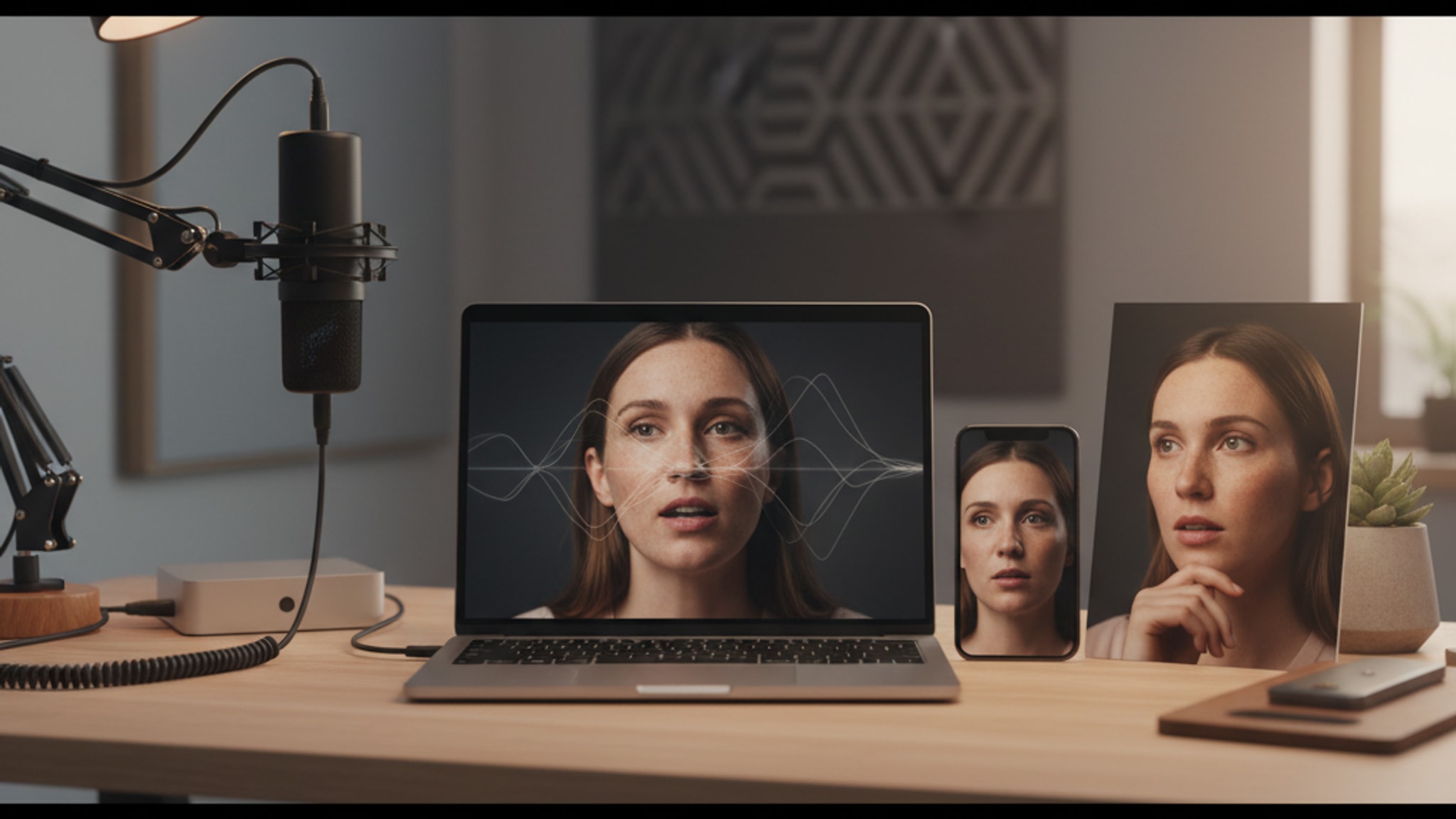
AI headshot generators have gotten remarkably good. Services like LensCherry can create studio-quality LinkedIn photos from a handful of selfies. The quality rivals what you'd get from a $200-300 studio session.
The real advantage for LinkedIn is speed and choice. You can create a model from reference photos, test different backgrounds and outfits, and compare several crops before changing the photo on your profile. LensCherry's AI Photos for LinkedIn page is the most direct starting point if LinkedIn is the job you are hiring the photo to do.
For the broader tradeoffs, check out our AI headshots guide.
Frequently Asked Questions
What kind of photo works best for LinkedIn?
A current head-and-shoulders photo with soft light, direct eye contact, a simple background, and a crop that keeps your face easy to read at a small size usually works best.
How close should a LinkedIn profile photo be cropped?
Your face and upper shoulders should fill about 60 to 70% of the frame. Too wide and your face disappears. Too tight and LinkedIn's circular crop can cut into your hair or shoulders.
What should I wear in a LinkedIn profile photo?
Dress one level more polished than your normal workday. Solid colors usually photograph better than busy patterns, and the outfit should still feel like the professional version of you.
Can I use an AI-generated LinkedIn headshot?
Yes, if it looks like you and fits how you actually show up professionally. AI Photos for LinkedIn is useful when you need better lighting, framing, or background choices, not a completely different face.
How often should I update my LinkedIn photo?
Update it whenever your appearance changes noticeably or the current photo no longer reflects how you show up now. For most people, that means every year or two.
The Bottom Line
Your LinkedIn photo is probably the most-viewed professional photo of you in existence. Recruiters see it. Clients see it. Colleagues see it. It's worth spending 30 minutes getting right.
Existing users can sign in to LensCherry to create headshots, dating photos, and creative portraits. Credit packs start at $4.99 and never expire.
Ready to replace the photo on your profile?
Sign in and generate LinkedIn headshots that look right at thumbnail size
Create your model from reference photos, generate several LinkedIn-ready options, and keep the one that feels current, credible, and easy to trust in search results and connection requests.
One-time credit packs. Credits never expire. Best when you need a stronger profile photo this week.